The smallest details
Crop closer to a dew drop, or preserve the whole leaf with a soft background.
A BETTER FIT FOR YOUR NEXT POST
Same story. A new frame. Turn a landscape clip into a vertical video, keep the moment that matters, and take your sound with you.
MP4, WebM or MOV · up to 100 MB · 60 seconds · maximum 1920 px per side
Your file stays in this browser. No uploads, accounts or credits. 9:16
9:16A little detail, ready for a bigger story
Browser-supported codecs. H.264 MP4 is recommended. Short clips work best; export speed depends on your device.
REAL CLIPS. ROOM TO EXPERIMENT.
Play a clip with sound, then bring it into the editor. Every sample is a real file you can resize and download.
Crop closer to a dew drop, or preserve the whole leaf with a soft background.
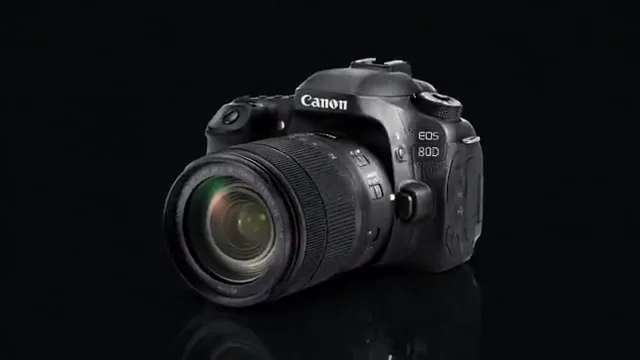
Keep the product at the center as the camera moves around it.
Use an existing portrait clip to explore square and landscape layouts.
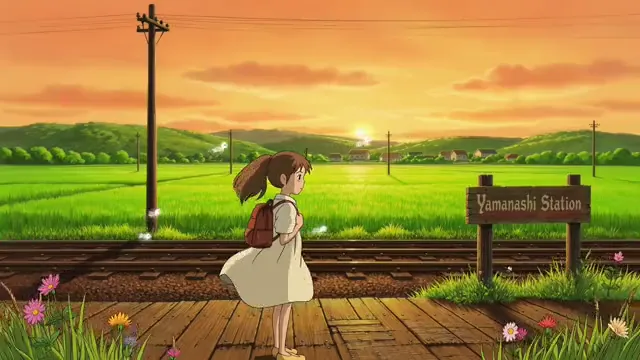
Fit the full animated scene when the edges are part of the story.
FROM WIDE SHOT TO VERTICAL STORY
Open a short video from your device or explore the sample. Your footage stays in your browser.
Choose 9:16, crop around the action, or keep the whole scene with a softly blurred background.
Export a 720p or 1080p MP4, play it back, and download it with your original sound intact.
ONE CLIP. TWO GOOD DIRECTIONS.
Get closer to the subject or keep the scene around them. Try either layout in the workspace.
Turn a wide shot into a 9:16 video. Move the crop and adjust the zoom so faces, movement and the details you love stay inside the frame.
Some shots need room to breathe. Fit the complete image into a vertical canvas and use a blurred background to carry its color through the frame.
Start with a vertical canvas, or choose a square or landscape layout. The preview follows the same framing settings as your export.
Keep the original audio by default, or switch it off for a silent export. Audio is converted to AAC for the MP4 download.
Video processing happens on your device. The engine loads when you export, so you can explore the page without loading a video editor first.
Choose your video, select the 9:16 shape and use Fill & crop. Drag the image or use the position sliders to keep your subject visible. Use Fit whole video if you want to preserve the entire landscape scene.
Yes. Choose Fit whole video. The full source image stays visible, with a blurred, black or white background filling the rest of the output canvas.
Yes. You can preview, resize and download without an account or credits. EZVideoGen adds no watermark. Any watermark already in your source video remains part of that footage.
Export H.264 MP4 at 30 FPS. A 9:16 video can be 720 × 1280 or 1080 × 1920. Square and landscape layouts are also available. Larger dimensions do not restore details missing from a low-resolution source.
Keep original audio is on by default. Existing audio is re-encoded to AAC and included in the export. You can turn it off. If the original file has no audio, the result stays silent.
The first export downloads a local processing engine of about 31 MB. Conversion then runs on your device. Large frames, blurred backgrounds and longer videos take more time; keep the tab open while exporting.
Choose an MP4, WebM or MOV up to 100 MB, 60 seconds and 1920 pixels per side. The actual video codec must also be supported by your browser. An H.264 MP4 is the most reliable starting point. Unsupported files show an error instead of an empty download.
Exporting re-encodes the video, so some detail can change. Cropping removes the edges of a shot; fitting keeps the whole image. Choose 1080p when your source has enough detail, or 720p for a smaller, faster export.
KEEP CREATING