
HAWAK MO ANG BEAT VIDEO GUIDE
How to Make a Hawak Mo Ang Beat AI Video
Pick the person. Study the dance. Give every gesture room.
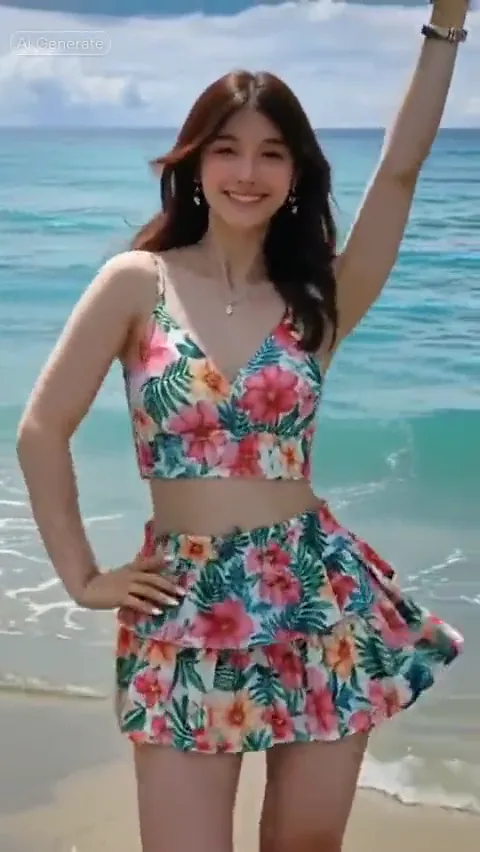
A Hawak Mo Ang Beat AI video pairs a person photo with a recognizable dance performance. In this beach reference, the performer sways, gestures toward the camera and lifts an arm above the head against turquoise waves. Start with one clear image, keep the original performance available as a motion reference, and separate appearance instructions from choreography and sound. Here is how to prepare those pieces in EZVideoGen and review the details that matter.
Use the Hawak Mo Ang Beat templateBuild the shot around three decisions
Choose the person
Use an evenly lit single-person photo with a clear face and the outfit you want to preserve.
Study the reference
Watch the full dance with sound. Notice the hand positions, headroom and stable camera.
Prepare and review
Carry your image and prompt into the workspace, then check identity, hands and timing in your chosen generation workflow.
3 EDITABLE IDEAS
A prompt library to make your own
Motion reference · not an output from this prompt
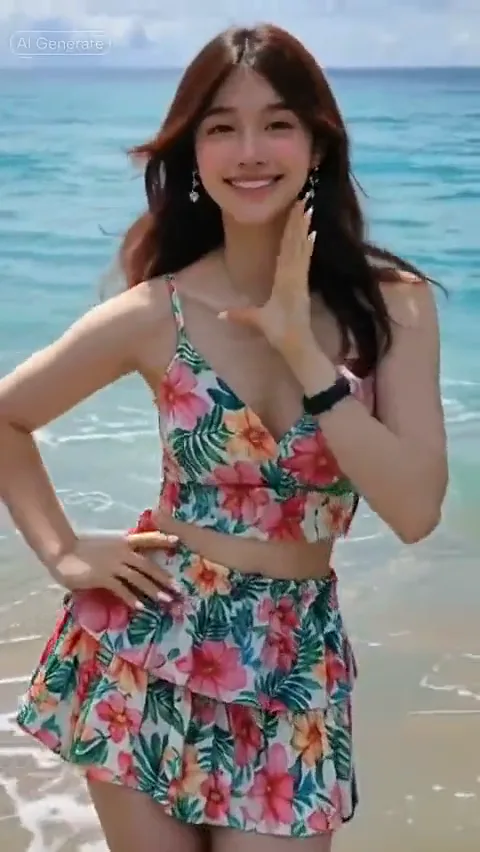
The full beach performance
Use the person in the uploaded photo as the identity and appearance reference. Preserve their face, hairstyle, skin tone, body proportions and outfit. Plan a Hawak Mo Ang Beat beach dance with turquoise waves behind the performer, a steady portrait camera and clear space around the arms. The performance moves through a relaxed hip sway, playful gestures toward the camera and an overhead arm pose. Keep the face readable, hands anatomically natural and clothing consistent. Use the linked motion reference for the exact sequence in a workflow that accepts reference video; text direction alone does not encode its choreography or audio timing.
Keep the reference clip alongside your photo. Exact motion needs a renderer with motion-reference input.
Open the Hawak Mo Ang Beat template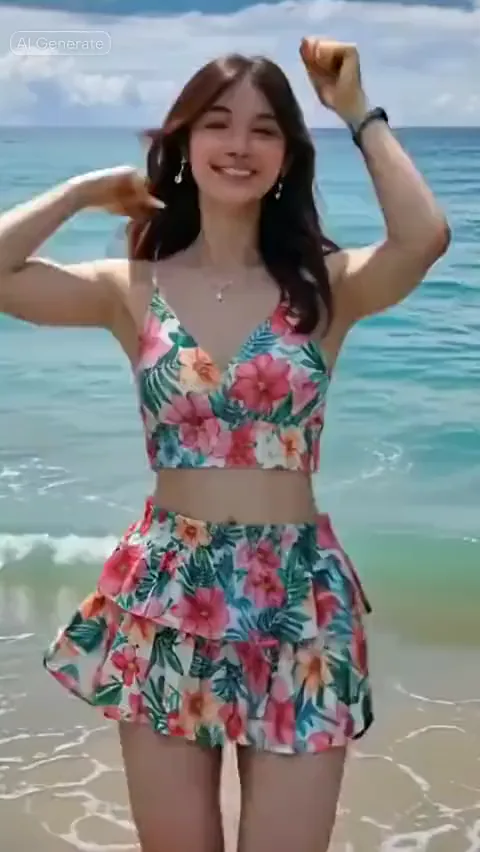
Keep the person recognizable
Use the uploaded person as the only lead in a portrait beach dance. Preserve the face shape, hairline, hairstyle, skin tone, outfit and any visible facial hair. Keep the face well lit and recognizable while the shoulders and hips move. Let gestures pass beside the face rather than covering it. Maintain natural hands, stable clothing and a consistent seaside background. Follow the Hawak Mo Ang Beat motion reference in a compatible reference-video workflow.
Name only the details that matter in your photo. Do not ask the same prompt to replace the outfit and preserve it unchanged.
Open the Hawak Mo Ang Beat template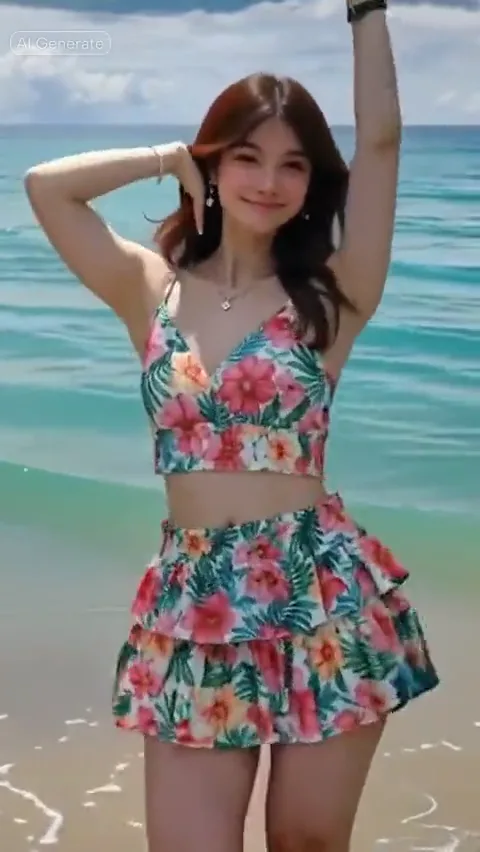
Give raised arms enough room
Frame a single performer at the water’s edge in a steady portrait shot. Leave extra room above the head and to both sides for pointing, waving and an overhead arm pose. Keep the face and upper legs readable, the horizon steady and the turquoise water behind the person. Preserve their uploaded appearance. Avoid zooms, cuts, new people or camera moves that crop the gestures. Use the dance reference for the movement sequence.
The original framing is close to 9:16. Fit the complete clip when resizing so raised hands are not cut off.
Open the Hawak Mo Ang Beat template1. Choose a photo that gives the dancer an identity
Start with one person, a sharp face and even light. A waist-up or full-body image gives the model more information about proportions and clothing than a tightly cropped selfie. Keep the eyes, hairline and outline of the face visible. Avoid motion blur, a hand over the face or a distant person in a group photo.
Upload a JPG, PNG or WebP up to 10 MB in the template workspace. Preview the file before continuing. If you change your mind, replace the photo without rewriting the prompt. Use a picture that shows the outfit you want: asking to preserve an outfit while also replacing it gives conflicting directions.
2. Read the dance before describing it
The reference supplies a short, continuous performance at the water’s edge. Watch the sway, the gestures near the face and the overhead pose. The camera stays relatively steady while the person moves inside the frame. A complicated orbit, sudden zoom or new setting would make it a different shot.
A written prompt can describe these actions, but it cannot carry every frame of choreography. For close motion matching, choose a generation workflow that actually accepts reference video. Keep the source clip and your person photo as separate inputs. Do not assume a model supports motion transfer simply because it supports image-to-video.
3. Use the template and carry your photo forward
Open the Hawak Mo Ang Beat template, add your photo and expand the prompt only if you want to edit it. Start with the full-performance prompt above. Use the optional notes for specific details such as short hair, a blue shirt or keeping the face unobstructed; avoid adding a second dance sequence.
Select Continue with this photo to move into the video workspace. Your image, prompt, notes and motion-reference link travel in the same tab. Review the prompt and save or copy the brief. Keep the tab open while working: local file references may need to be selected again after a full reload.
Treat duration, aspect ratio and resolution in a creative brief as planning choices. Before sending a generation task, check the selected model’s accepted inputs, output options and price. The reference’s duration is not a universal model setting.
4. Keep the soundtrack and the full gesture in view
Click the example to play it with its original sound. Hover previews elsewhere may be muted, but explicit playback includes a volume control. The reference is approximately 14.4 seconds; its original 540 × 958 frame is close to, but not exactly, 9:16. The lighter page copy keeps the full performance and audio.
Source audio does not automatically transfer through a text prompt. Check whether your renderer keeps it, accepts a separate audio input or needs a later editing step. When preparing a finished clip for TikTok, use fit mode in the video resizer if a crop would remove raised hands. Listen to the exported file as well as watching it.
5. Review identity, hands and timing before sharing
Pause at the beginning, during the gesture nearest the face and at the highest arm position. Compare the face, hairstyle and clothing across those moments. Look for changing fingers, merged arms, fabric that changes shape or hands that disappear beyond the frame. These are better checks than judging only a flattering first frame.
If the face changes when a hand crosses it, try a clearer source photo and simplify appearance instructions. If the arms are cropped, increase framing room rather than demanding larger gestures. If the dance is unrelated to the reference, verify that the motion input was accepted instead of adding more adjectives to a text prompt.
For a timing mismatch, compare picture and sound together. Check that the correct source was used and that trimming or frame-rate conversion did not alter the sequence. Revisit the model’s motion and audio capabilities before assuming a different prompt will solve synchronization.
Questions before you create
Can I use a close-up selfie?
A clear selfie can identify a face, but it provides less information about the outfit and body. A waist-up or full-body photo is a stronger starting point for this dance.
Do I need to copy the reference outfit?
No. The person photo supplies the appearance you want. Keep the intended clothing visible and ask to preserve it consistently.
Why does my version have different movements?
Image-to-video and motion transfer are different capabilities. A prompt describes motion; close choreography matching requires the reference video to be accepted by a compatible model.
Does changing the resolution fix hands or faces?
Higher resolution alone does not guarantee stable identity or anatomy. Check source-photo quality, framing, motion complexity and model suitability first.
Keep exploring
Hawak Mo Ang Beat Template
Add a photo and prepare the dance prompt in one place.
Popstar Video Tutorial
Plan a different photo-led performance.
Resize Video for TikTok
Fit the complete dance into a vertical frame and preserve sound.