Skip to workspace

AI horror scenes

AI Horror Video Generator

Build suspense with an atmospheric scene, an uncanny change and a reveal worth waiting for.

Your creative brief

Build the tension

A quiet scene with one detail that changes.

Scene prompt
Keep the scene consistent

Refine your idea, review the direction and export your creative brief.

Images stay in this tab. Drafts survive in-site navigation for 30 minutes; a reload clears them.
Reference preview
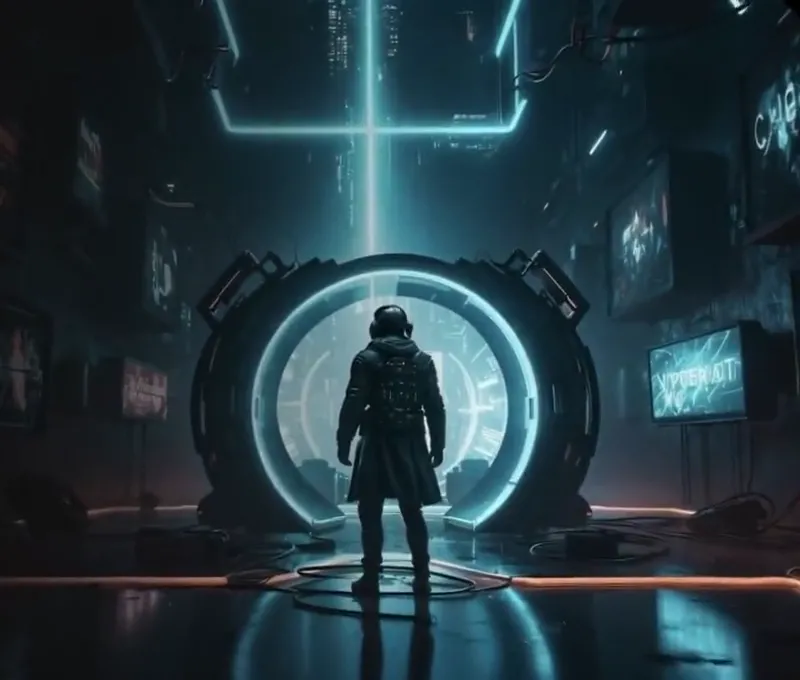
A threshold in the neon alley

A figure approaches a glowing circular doorway in a rain-darkened futuristic alley. A science-fiction reference for atmosphere and a slow camera approach.

Reference clip, not a result from your upload.

Suspense in the frame

Make the viewer notice what changed.

An AI horror video starts with a readable scene. Decide where the eye rests, what interrupts the calm and what remains unexplained.

Let the location carry the tension.

Reference clip, not a result from your upload.

Atmosphere

Let the location carry the tension.

A rain-darkened futuristic alley leads to a glowing circular doorway as a lone figure approaches. Study the slow camera movement, wet reflections and unresolved destination as an atmosphere reference.

  • Science-fiction setting
  • Slow approach
  • Unresolved destination

These clips are visual references for mood and framing. The editable prompts describe new shot ideas rather than reconstructing the clips.
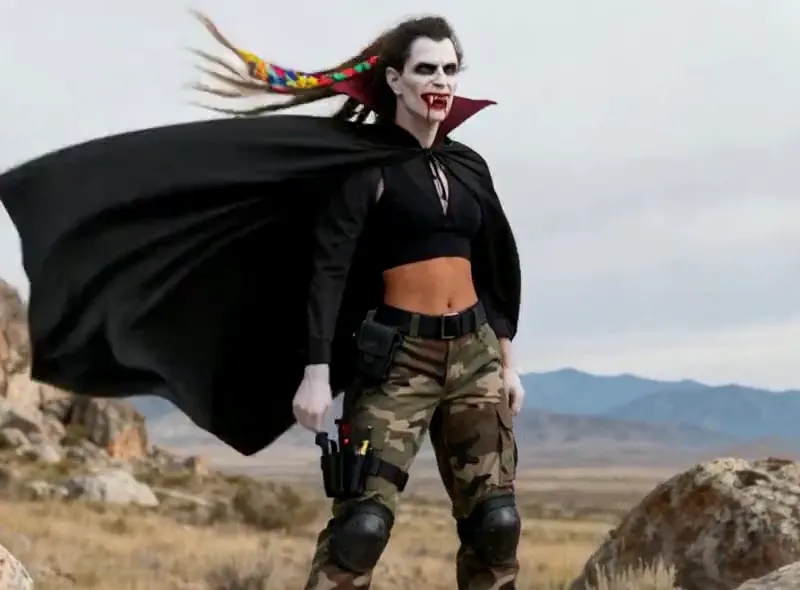
Give a familiar face an uncanny change.

Reference clip, not a result from your upload.

Uncanny motion

Give a familiar face an uncanny change.

This Halloween reference transforms an outdoor character into a pale vampire with pointed fangs and a dark cape. Use it to study a visible change in appearance rather than a subtle head movement.

  • Halloween transformation
  • Recognizable face
  • Non-graphic effect

For your own transformation, name exactly which features change and which stay recognizable. The editable prompt is a new interpretation, not the original recipe for this clip.

Decide how much the camera should reveal.

Reference clip, not a result from your upload.

Slow reveals

Decide how much the camera should reveal.

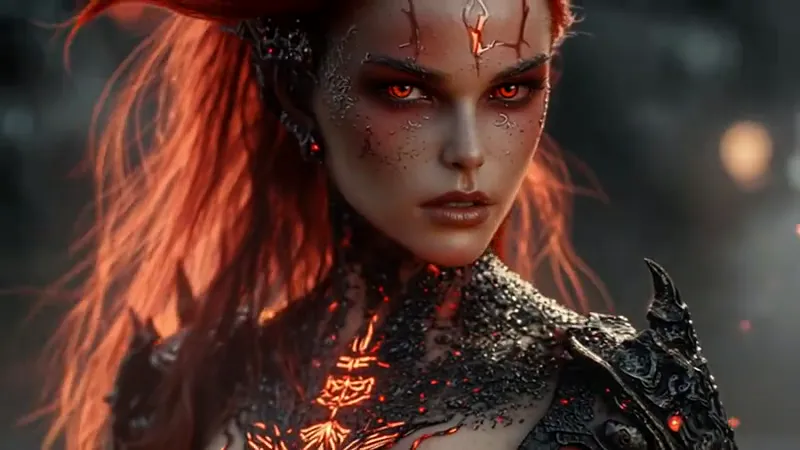
A red-haired dark-fantasy character fills the opening view. As the camera pulls back, armor, glowing eyes and wings become part of the composition. The reveal comes from showing more of the subject.

  • Camera pullback
  • Wings reveal
  • Dark fantasy

This is a fantasy motion reference, not a generated result from your image. For a precise final view, prepare two images in First & Last Frame Video and plan the sound cue separately.

Write the unsettling detail

Horror video prompts with room for suspense.

Start with a location, an uncanny gesture or a reveal. Send any prompt to the workspace and keep your reference image in place.

6 prompts
The doorway beyond the rain
Atmosphere

The doorway beyond the rain

A lone fictional traveler approaches a softly glowing circular doorway in a rain-darkened futuristic alley. Move the camera slowly forward, keeping the alley geometry, coat and light direction consistent. Let reflections shift on the wet ground as the traveler pauses before the threshold. Hold the unresolved final view. Low-key lighting, no gore or flashing lights.

A theatrical vampire transformation
Uncanny motion

A theatrical vampire transformation

Transform the fictional adult in the reference image into a theatrical Halloween vampire. Gradually introduce a pale complexion, small pointed fangs and a dark cape while keeping the face recognizable and the outdoor background stable. Use one continuous medium shot and finish on a still, confident pose. No blood, injury, strobe effects or extra characters.

Wings beyond the close-up
Reveals

Wings beyond the close-up

Begin close to a fictional dark-fantasy character with red hair, glowing eyes and textured armor. Slowly pull the camera back to reveal a pair of wings behind the shoulders. Preserve the face, armor pattern and lighting throughout the reveal. Let a few faint embers drift in the background, then settle into a held composition. No gore or sudden cuts.

A curtain in a sealed room
Atmosphere

A curtain in a sealed room

A dim room has a closed window and a thin curtain. Hold a steady wide shot as only the bottom of the curtain slowly lifts, then falls still. Keep the furniture, window frame and light direction unchanged. Maintain enough light to see the movement. End on the quiet room without a figure, flashing light or cut.

A reflection misses its cue
Uncanny motion

A reflection misses its cue

A fictional adult stands beside a mirror in a softly lit room. The person turns their head slightly while their reflection remains still for one brief beat, then catches up. Use a locked medium shot. Preserve face, clothing, mirror edges and room geometry. Keep the movement small and end with the person and reflection aligned. No graphic injury.

The stairwell beyond the door
Reveals

The stairwell beyond the door

Start close to an open doorway in an old building. Slowly move the camera sideways until a dim stairwell is visible. At the top of the stairs, reveal only the outline of a motionless fictional figure. Keep the doorway, steps and shadows consistent. Stop before revealing the face, hold the composition, and end without a cut or sudden movement.

Six original prompts explore three reference clips. The examples illustrate a mood or motion idea and are not exact results of these prompts.

From idea to horror scene brief

How to plan an AI horror video

  1. Choose the unsettling detail

    Describe a location and one thing that feels wrong. Use text for a new scene or upload an image to establish its look.

  2. Give the tension a rhythm

    Choose atmosphere, uncanny motion or a slow reveal. Write the opening, the single change and the final hold in that order.

    Explore horror prompts
  3. Review the scene brief

    Check framing, duration and continuity notes. Copy or download your brief.

A short scene needs a clear rhythm

Write the calm, the change and the hold.

Use three beats for one shot. For an AI horror movie concept, repeat this process across a storyboard rather than packing the whole plot into one prompt.

The calm
Establish a visible location, a focal point and a stable light source. Give the viewer a moment to understand the frame.
The change
Choose one unsettling action. Say what moves and what must remain still, including the camera and surrounding objects.
The hold
Name the final composition and let it settle. Leave sound cues and cut timing as separate editing notes.

Questions before you start

AI Horror Video Generator FAQ

Scene ideas, continuity and the current workspace capabilities.

What can I do with this AI horror video generator today?

Explore motion references, choose a horror direction, adapt a prompt and attach a reference image. Export a scene brief with the atmosphere, camera and movement you want.

Can I start a scary AI video from text or an image?

Both starting points are available in the brief workspace. Text is useful for an invented location; a reference image helps establish the character, lighting and composition. Switching directions keeps your uploaded image in place.

Is this an AI horror movie generator for a complete film?

This page is designed around individual shots. A complete horror movie also needs story structure, consistent scenes, editing and sound. Use Storyboard to Video to plan a sequence of shots, then develop each shot with its own prompt.

How do I write a good horror video prompt?

Name the setting, choose one unsettling detail, describe a single camera or subject movement, and say how the shot ends. Include continuity notes for the face, costume, walls and lighting. A short, specific action is easier to evaluate than a long list of scares.

Can I make suspense without gore or a jump scare?

Yes. A slow reveal, an impossible shadow or a character who stays still too long can establish tension. The prompts here focus on atmosphere and readable movement rather than graphic injury or flashing effects.

Will the prompt reproduce the example clip?

No. The clips illustrate visual directions, while the editable prompts are original starting points. A later rendering model, your input image and its settings will affect the result. Check the generated frames for unwanted changes before using a clip.

Does the workspace add horror music or sound effects?

No audio is generated here. You can add sound cues to your downloaded brief and plan them alongside an edit. Use the Music Video Prompts guide to develop visual pacing and treat soundtrack production as a separate step.

What is the first thing your viewer notices?

Set the scene. Change one detail. Leave a little unexplained.

Bring your reference, refine the direction and save your creative brief.

Your brief is ready

Your images and instructions are organized. No video has been rendered or credits charged.