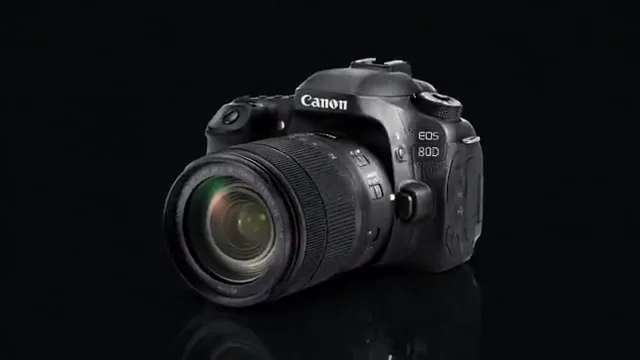
A product post for the feed
Crop a wide product shot into a tall 4:5 frame that fills the screen.
REELS, FEED POSTS AND SQUARES
Turn a short clip into a Reel, a 4:5 feed post or a square. Frame the subject, see where captions and buttons land, and export an MP4 with your sound.
MP4, WebM or MOV · up to 100 MB · 60 seconds · maximum 1920 px per side
Your file stays in this browser. No uploads, accounts or credits.4:5A tall 4:5 post fills more of the feed
Browser-supported codecs. H.264 MP4 is recommended. Short clips work best; export speed depends on your device.
Play a clip, then open it in the editor as a 9:16 Reel, a 4:5 feed post or a 1:1 square. Every sample is a real file you can export.
Crop a wide product shot into a tall 4:5 frame that fills the screen.
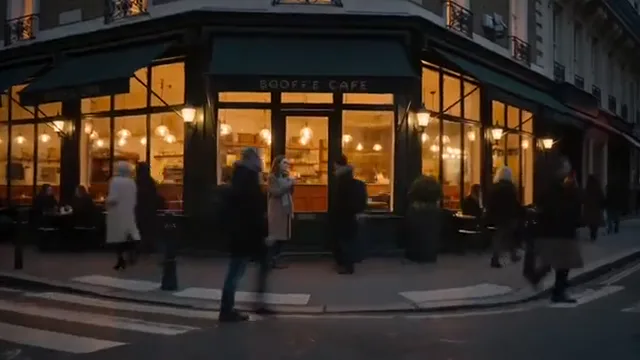
Fit a landscape scene into 9:16 over a soft blur, with room for a caption.
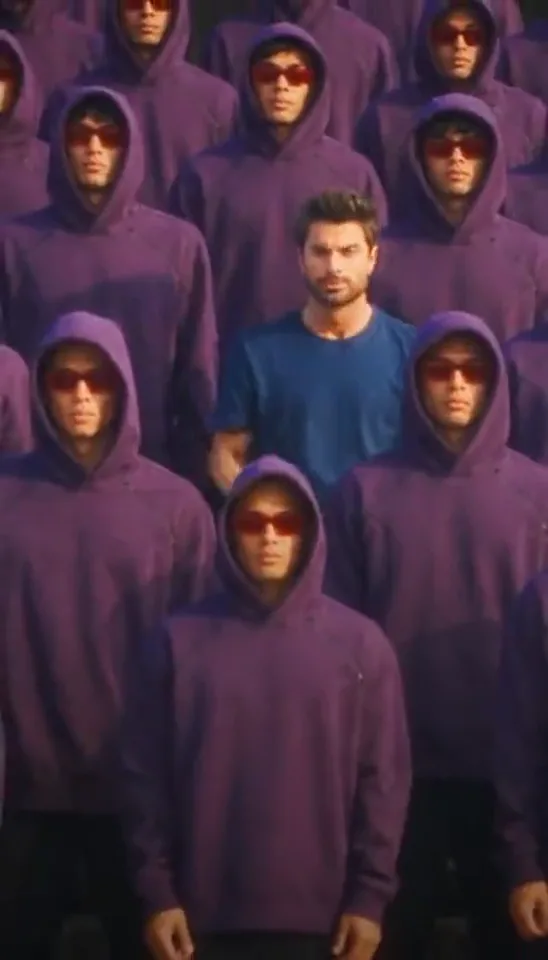
Check the Reels safe zone so the dancer stays clear of the buttons.

Center the action in a 1:1 frame or keep the whole shot on a brand color.
Choose an MP4, MOV or WebM from your phone or computer. It is processed in this browser tab and never uploaded.
Start from a preset: Reels 9:16, Feed 4:5, Square 1:1 or Landscape 1.91:1. Turn on the safe zone to keep text clear of captions and buttons.
Save a 1080-wide H.264 MP4 with AAC audio, watch it back, then share it from the Instagram app.
A tall crop takes up more of the feed. Fitting keeps every edge, with a blur, a brand color or your own image behind it.
Crop a landscape clip into a tall 4:5 frame, then drag it so faces and products stay inside the part the profile grid shows.
Keep the complete frame inside a 4:5 or 9:16 canvas and fill the space with a soft blur, a solid color or a background image.
Reels and Stories at 1080 × 1920, feed posts at 1080 × 1350, squares at 1080 × 1080 and landscape posts at 1080 × 566.
Overlay the areas Instagram covers with buttons and captions, and the 3:4 crop your profile grid shows, so titles and faces stay visible.
Your clip is processed on your device: no upload, account, credits or added watermark.
Use 9:16 at 1080 × 1920 for Reels and Stories. For feed posts, 4:5 at 1080 × 1350 takes up the most space in the feed; 1:1 at 1080 × 1080 and 1.91:1 at 1080 × 566 work too. Pick the matching preset and the size is set for you.
Choose Fit whole video. The full frame stays visible and the empty space is filled with a blurred copy of the clip, a solid color or an image you choose.
Instagram shows the caption, audio label and action buttons over the bottom and right of a Reel, and its header over the top. Turn on the safe-zone overlay to see these approximate areas and keep text in the clear middle. Layouts change between app versions, so check the post in the app before you publish.
The profile grid shows a 3:4 crop of feed posts, trimming a little from the top and bottom of a 4:5 video. With the Feed preset, the preview marks that crop so key details stay in the center.
Instagram compresses every upload again. Start from your best source, export at 1080, avoid tiny text and upload over a good connection. Resizing cannot add detail that a low-resolution source does not have.
Yes. There is no account, credit or watermark. The video is processed in your browser; the first export downloads a local engine of about 31 MB.
Open an MP4, MOV or WebM up to 100 MB, 60 seconds and 1920 pixels per side, in a codec your browser can play. Drag the trim handles under the preview to export only the moment you want.
Yes. Keep original audio is on by default, and the first audio track is converted to AAC inside the MP4. Turn it off for a silent export.
Make a 9:16 TikTok version with the TikTok safe zone.
Post the same clip as a 16:9 or square video on X.
Cut a long take into short clips before you resize them.