VIDEO QUALITY
How to Fix a Blurry Video: Causes, Fixes and What AI Can Unblur
Most blurry videos are not fixed in an app. They are prevented in the camera and in the export. Here is how to find the real cause, fix what can be fixed and set realistic expectations for AI unblur tools.
On this page
First, find out what kind of blur you have
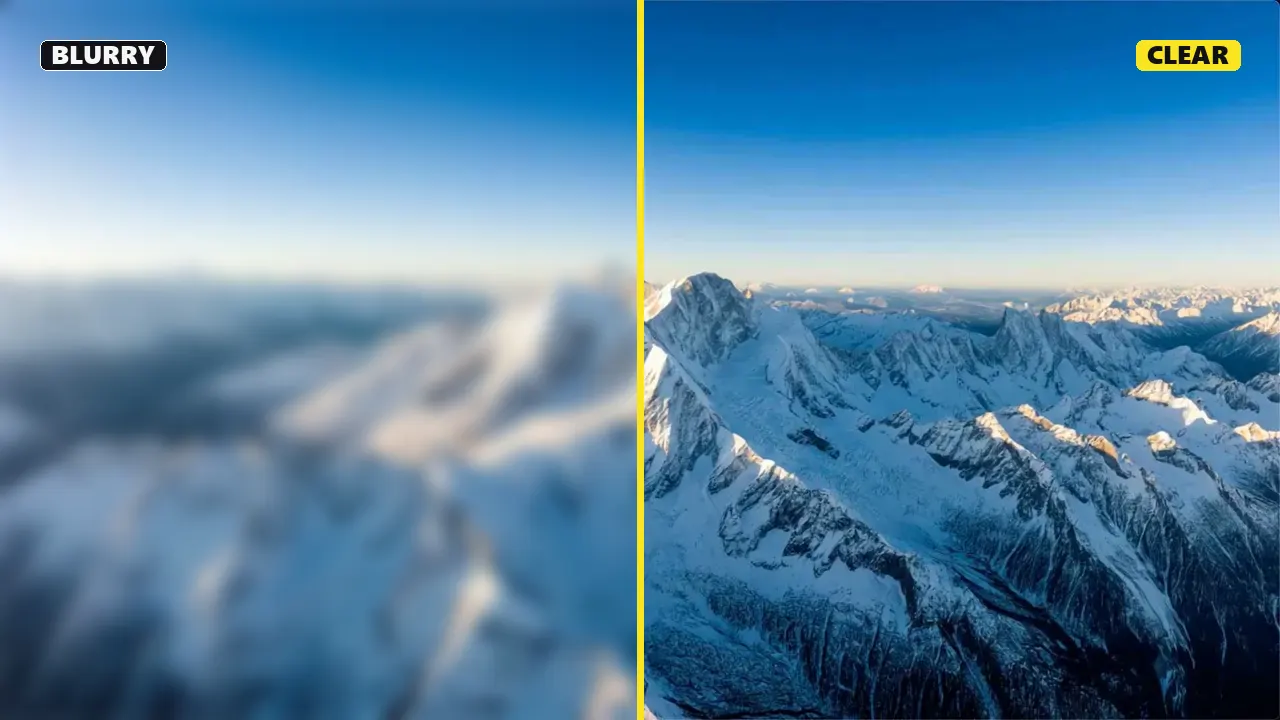
“Blurry” describes several different problems, and each has a different fix. Pause the video on a frame with movement and one without. You can also save single frames with the Video Frame Extractor and zoom in.
| What you see | Likely cause | Fixable afterwards? |
|---|---|---|
| The whole frame is soft, even when nothing moves | Missed focus, a dirty lens or digital zoom | Only slightly. Re-shoot if you can. |
| Sharp background, smeared moving subject | Shutter speed too slow (motion blur) | Rarely. AI deblurring can reduce mild cases. |
| Everything smears when the camera moves | Camera shake with a slow shutter | Stabilization removes the shake, not the blur inside each frame. |
| Blocks and smeared texture in busy or dark areas | Too little bitrate in the export or upload | Yes, if you still have the original file. |
| Soft, waxy faces in low light | Heavy noise reduction in the camera | Partly. Add light next time. |
| Sharp on your computer, blurry online | HD still processing, or platform re-compression | Usually. Wait for HD and upload a better file. |
| Double images on movement | Frame blending during frame-rate conversion | Yes. Re-export at the original frame rate. |
Prevent blur while recording
- Clean the lens. A fingerprint on a phone lens causes a soft haze across the entire frame. It is the most common cause of a blurry phone video.
- Lock focus. Tap your subject and hold to lock focus and exposure, so the camera does not hunt during the shot.
- Use a suitable shutter speed. A common starting point is double the frame rate: about 1/50 s at 24 or 25 fps, 1/60 s at 30 fps and 1/120 s at 60 fps. Faster shutters freeze action more clearly.
- Add light. In the dark, cameras slow the shutter and smooth away noise, and both make the picture soft.
- Skip digital zoom. Move closer or switch to a real telephoto lens.
- Stabilize the camera. Use a tripod or gimbal, or brace your elbows against your body.
Export and upload settings that keep video sharp
Many “blurry” videos are sharp in the camera and lose detail in the export. Video compression throws away detail when there are not enough bits for the amount of movement in the picture. Export at the source resolution and frame rate, and give the encoder enough bitrate. YouTube publishes these targets for standard (SDR) uploads:
| Resolution | 24–30 fps | 48–60 fps |
|---|---|---|
| 720p | 5 Mbps | 7.5 Mbps |
| 1080p | 8 Mbps | 12 Mbps |
| 1440p | 16 Mbps | 24 Mbps |
| 2160p (4K) | 35–45 Mbps | 53–68 Mbps |
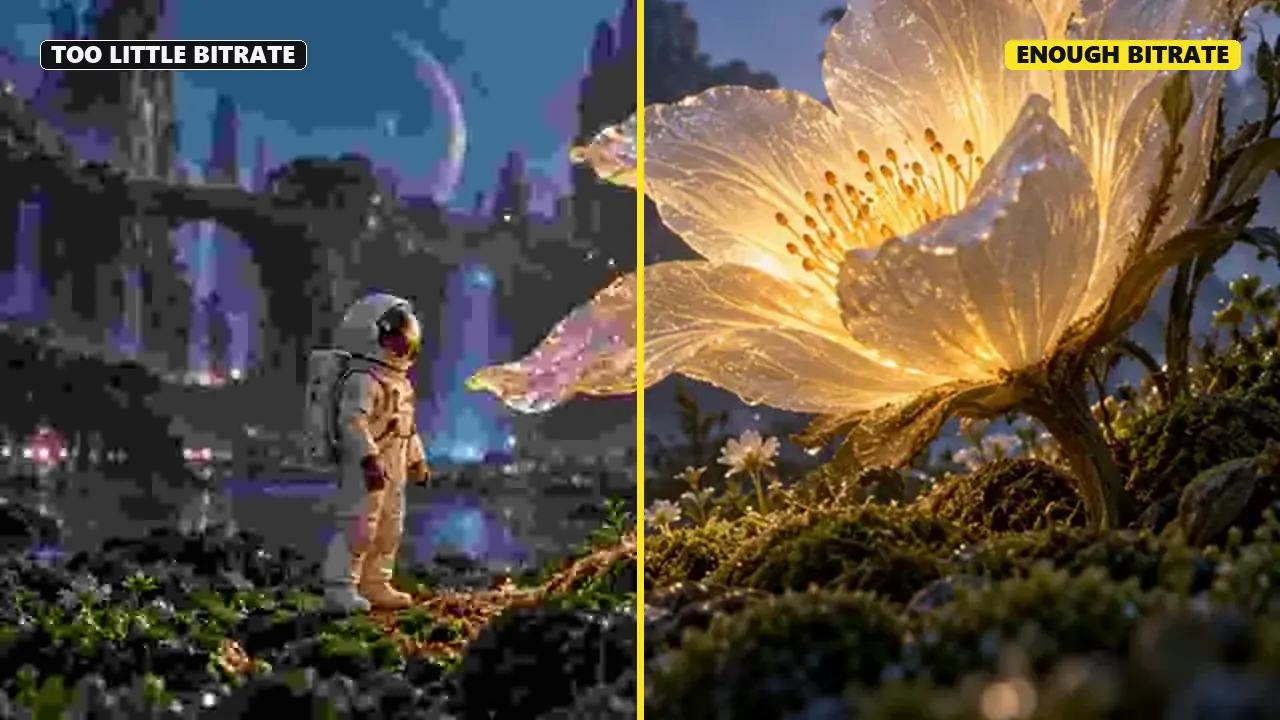
When you need a smaller file for email, chat apps or Discord, lower the resolution before you lower the bitrate. A clean 720p file looks better than a blocky 1080p file of the same size. The Video Compressor shows the real output size, so you can compare a few settings before you download.
If a platform needs a different frame rate, convert by dropping or repeating whole frames rather than blending them together. The Video FPS Converter works this way: it does not invent new motion, but it also avoids the ghosting that frame blending creates.
After uploading, give the platform time. YouTube makes lower resolutions available first, and HD or 4K versions can take longer to process. Also check the player’s quality setting, because slow connections switch to a lower resolution automatically.
How to make a blurry video clearer in editing
If you cannot re-shoot, these steps improve perceived sharpness without making things worse:
- Start from the original file, not a downloaded or re-shared copy. Every re-encode loses detail.
- Crop less. Zooming into a 1080p frame magnifies its softness.
- Reduce noise first, then sharpen, so you do not sharpen the noise.
- Add a little sharpening and contrast. Sharpening makes edges crisper but does not create detail; too much causes halos and grain.
- Export with enough bitrate, using the table above, so the improvement survives compression.
For vertical platforms, resize instead of letting the app stretch the picture. Resize Video for TikTok crops or fits footage into 9:16; choose the output size closest to your source so nothing gets upscaled unnecessarily.
What AI unblur tools can and can’t do
AI video enhancers are trained on pairs of sharp and degraded footage, and they predict what the sharp version probably looked like. On the right kind of blur, the results can be impressive.
Where AI enhancement works well
- Mild softness from a slight focus miss or downscaling
- Compression blocks, banding and noise in low-light footage
- Upscaling clean, low-resolution footage, for example 480p to 1080p
Where it struggles
- Heavy motion blur or a badly missed focus: the detail was never recorded
- Small text, license plates and fine patterns, where the model may invent believable but wrong characters
- Faces, where eyes, teeth and other features can change and the person looks slightly different
- Consistency over time, because frame-by-frame enhancement can flicker
Treat AI output as a reconstruction, not a recovery. Keep the original, and do not use enhanced footage as evidence of what really happened. To find the best tool for your blurry videos, test a 5–10 second clip that contains faces and text, then compare the frames side by side.
Quick checklist for sharper videos
- Lens clean, focus locked, enough light
- Shutter speed around double the frame rate, or faster for action
- Export at the source resolution and frame rate
- Bitrate at or above the platform’s recommendation
- Lower the resolution, not just the bitrate, when files must be small
- Wait for HD processing before judging an upload
Frequently asked questions
Can you really unblur a video?
Partly. Mild softness, compression artifacts and noise can be reduced with sharpening or AI enhancement. Heavy motion blur and badly missed focus cannot truly be reversed, because the detail was never recorded. AI tools may add plausible but invented detail instead.
What is the best tool to fix blurry videos?
It depends on the cause. For compression blur, export again from the original file with a higher bitrate. For slight softness, a sharpening filter in your editor helps. For low-resolution or noisy footage, an AI upscaler can work well. Test any tool on a short clip with faces and text first.
Why does my video look blurry after uploading?
Platforms make lower resolutions available first, so HD may not be ready yet, and they re-compress every upload. Upload at your source resolution with a good bitrate, wait for HD processing to finish and check the player’s quality setting.
How do I make a blurry phone video clear?
While recording, clean the lens, tap to lock focus and add light. Afterwards, avoid zooming in, export at the original resolution and share the file through apps that do not compress it heavily.
Does increasing the resolution make a video sharper?
No. Exporting a 720p video at 4K makes the file larger but does not add real detail. AI upscalers try to add detail, but the result is an estimate rather than recovered information.
Does a higher frame rate reduce blur?
Not by itself. Motion blur depends mostly on shutter speed. Recording at 60 fps usually means a faster shutter, which reduces blur, but converting a 30 fps video to 60 fps afterwards does not make each frame sharper.
Tools mentioned in this guide
Video Compressor
Reduce file size and compare the real output before you download.
Video FPS Converter
Change the frame rate by dropping or repeating frames, without blending.
Video Frame Extractor
Save individual frames to inspect focus and compression.
Resize Video for TikTok
Crop or fit footage to 9:16 without stretching it.